Not a dashboard. An operating system you talk to and reach into.
Overview
An assistant you talk to and reach into
A spatial computing environment built as an eight-phase escalation, not a page: a volumetric room you orbit, a carousel of glass modules you rotate with your hands, a Gemini assistant that streams speech and can be interrupted mid-sentence, and a macOS and Windows bridge that launches real applications on the machine serving it. MediaPipe reads two hands from the webcam for pinch, grab, swipe, depth and circle gestures, with a full pointer fallback so it works with no camera at all. Six environments — Minimal Studio, Dark Lab, Glass Observatory, Command Center, Ocean Platform, Fog Chamber — morph the whole world, each with its own filmic colour grade. Every module is live: markets, weather, calendar, sports, news, repositories and system telemetry, with credential-gated feeds that say SETUP REQUIRED rather than inventing numbers. A first-run setup screen takes every key and preference, each with a Test button, and keeps them on your own machine. The October 2026 update makes it a personal assistant: an Assistant mode that drops the 3D room for a light 2D console you can leave open all day, a brain that can run on your own PC through Ollama, a memory of what you tell it, reminders and a daily briefing it fires itself, WhatsApp and iMessage messages sent only after you confirm, and exact Spotify playback.
Node.js 18 or newer and a desktop browser with WebGL2. No keys, no accounts.
To talk to it
One Gemini API key (the free tier works), or a local model through Ollama. Everything else runs without one.
Two ways to run it
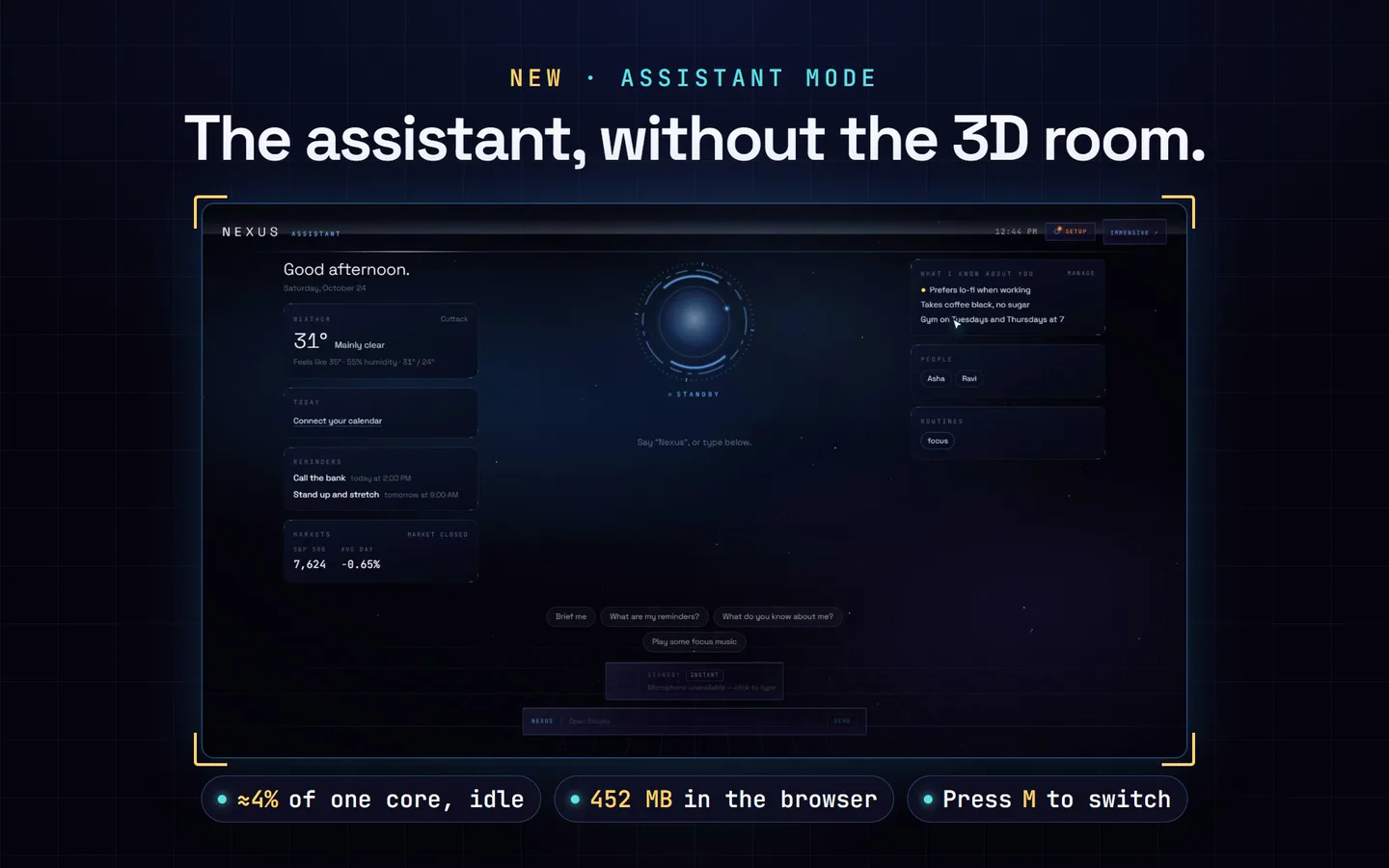
The 3D room, or Assistant mode: the same assistant in 2D, at about 4% of one core when idle.
Best on
Chrome or Edge on a desktop with a webcam and microphone. Mouse and keyboard work too.
Controlling your computer
macOS or Windows, and off until you switch it on.
Who hosts it
You do, on your own machine. We never run it, see your data or hold your keys.
What it does
Everything NEXUS does for you
New · Assistant mode
The whole assistant, without the 3D room
Press M, click the ASSISTANT chip or say "assistant mode". Your day sits on the left — greeting, weather, today's calendar, reminders, markets. In the middle, a reactor around the voice orb shows what NEXUS is doing: blue on standby, cyan listening, gold thinking, bright while it answers. On the right, what it knows about you, the people it can message and your routines. There is no WebGL, camera or hand tracking, so it is light enough to leave open all day.
About 4% of one core when idle, against 57–62% for the room
452 MB of browser memory
A browser without WebGL starts here instead of showing an error
New · Brain
Think in the cloud, or on your own PC
Setup → Brain chooses who answers. Gemini, as before; Local first, where a model on your machine answers and only live questions (news, scores, prices) go to Gemini; Local only, which never touches the cloud; or a running OpenJarvis server. Local models run through Ollama with a 12K context, so NEXUS's instructions are never cut off, and NEXUS starts loading the model as soon as it starts listening, then keeps it loaded for 30 minutes.
Test sends one real question and reports how long it took
Every tool works whichever engine answers
Built on OpenJarvis's ideas, re-implemented in TypeScript
New · Memory and reminders
It remembers, reminds and briefs you
"Remember that I prefer lo-fi when I work." "Remind me every weekday at 9 to stand up." "Brief me." Facts and contacts are kept in a file on your computer and the most relevant are handed to the model each turn. NEXUS fires reminders itself, with a spoken line, a card and a chime, and at the time you choose it reads a short briefing of your calendar, reminders, weather, markets and headlines.
Passwords, PINs, card numbers and API keys are refused, not stored
The model sees your contacts' names, never their numbers
"In 10 minutes" is counted by NEXUS, not guessed by the model
New · Messages, music and apps
Send, play and open, by voice
"Message Asha on WhatsApp that I'm running late" shows a card with a masked number and the exact text, and nothing is sent until you press Send or say yes on your next turn. With free Spotify developer keys, "play Blinding Lights" plays that song, not a search page; connect a Premium account to start playlists and albums too. On Windows, "open WhatsApp" or "open Word" launches the app straight from your Start menu.
WhatsApp on macOS and Windows; iMessage on a Mac
On Windows, Enter is pressed only once WhatsApp is really in front
Apple Music and YouTube Music too
What's in the source
205 files — the finished project, ready to run with npm install and npm run dev.
No asterisks. If something below would change your mind, it should change it now rather than after checkout.
What it is
A local-first web app — a 3D spatial environment you run on your own computer and drive with hand gestures, voice, mouse and keyboard.
A personal assistant that thinks on Gemini or on a model on your own machine, with streaming, interruptible speech, a memory of what you tell it, reminders, a daily briefing, and live modules for markets, weather, sports, news, GitHub and system telemetry.
MIT-licensed source. The pack ships with its LICENSE file, which lets you use, change and redistribute the code. What is ours is the eight-phase prompt pack that built it.
What you can do with it
Run it free with no keys — everything except the assistant works straight away.
Talk to it — ask it to open modules, switch worlds, explain what's in front of you or answer with live web results — once you add a Gemini key or a local model.
Leave it open all day — Assistant mode drops the 3D room and keeps the assistant: your day on the left, a voice orb and the conversation in the middle, what it knows about you on the right.
Make it personal — "remember that…", "remind me every weekday at 9…", "brief me". It sends WhatsApp and iMessage messages only after you confirm them, and plays the exact song you ask for on Spotify.
Watch it take a body — say "Nexus, transform into a human shape" and the interface dissolves into particles that reassemble as a digital human that talks and presents live panels with its hand; "return to spatial mode" brings the room back.
Let it control your computer — on macOS or Windows: launch apps, open links in their own window, play and pause media, set the volume, take screenshots, read and write the clipboard, take notes — by switching on desktop control.
Make it yours — set your city, portfolio or watchlist, GitHub account, leagues and news on the setup screen, and change anything else in the source.
What it is not
Not a hosted or cloud service. It runs on your machine. Putting it on a public URL without adding your own login means anyone who finds it can spend your Gemini quota and see your connected feeds — and the desktop bridge only works on the machine serving it.
Not built for phones or every browser. It is designed for a desktop browser with WebGL2 and a webcam. Voice input uses the browser's own speech recognition, which works in Chrome and Edge but not Firefox — you can always type a command with /.
Not private by default for voice. In Chrome, speech recognition sends your audio to Google for transcription; that is the browser's behaviour, not something the app can switch off. What you ask the assistant is sent to Google's Gemini API, unless you choose Local only under Brain, which keeps every answer on your machine.
Not desktop control on every system. Desktop control works on macOS and Windows, only after you switch it on, and on a Mac some commands need permissions (Screen Recording, Automation, Accessibility). Windows has no scriptable Reminders app, Do Not Disturb or iMessage, so those are refused there; on Linux every desktop command is refused. NEXUS's own reminders, memory and briefing work everywhere, as does the rest of NEXUS.
Not a background service. Reminders and the daily briefing fire only while NEXUS is open, in a tab, in either mode. A reminder that came due while it was closed is announced as missed the next time it opens.
Not unlimited on the free tier. Gemini's free tier has daily limits, and answers grounded in live web search run out first. Heavier use needs a paid Gemini key, billed to you by Google. A local model has no limit, but no live web either: Local first sends only live questions to Gemini.
Not keyless everywhere. Calendar needs a published calendar link, and Instagram needs a Business or Creator account linked to a Facebook Page, a Meta app and a token. Without them those two modules show SETUP REQUIRED — they never show made-up numbers.
Not exclusive code. The source is MIT licensed, so you — and anyone you share it with — may reuse and redistribute the code. The prompt pack is ours and can't be resold or redistributed.
Not a guarantee, and not a support contract. Live data comes from free public endpoints — Yahoo Finance, ESPN, Open-Meteo, Hacker News — that can change or rate-limit without notice. The pack is sold as it is: anything broken or missing we fix, but custom modules and setup help are separate studio work.
About the prompt on its own
The prompt pack is the eight briefs, in order, that took an empty folder to this build — foundation, AI brain, knowledge engine, environments, OS bridge, cinematic polish, the human form and steadiness. It is not the code. A coding agent following them builds its own version, which won't match this one line for line. The personal-assistant layer added in October 2026 (Assistant mode, local models, memory, reminders, the briefing, messages and music) is in the source only. If you want NEXUS exactly as shown, that is the source, which you can buy on its own or get with All-Access.
Setup guide
From zip to talking to it
Four parts, in order. Part 1 alone gives you the whole spatial environment, free — the assistant, your own data and control of your computer are each one step further.
The setup screen
Set up in minutes. No config files.
About 5 minutes
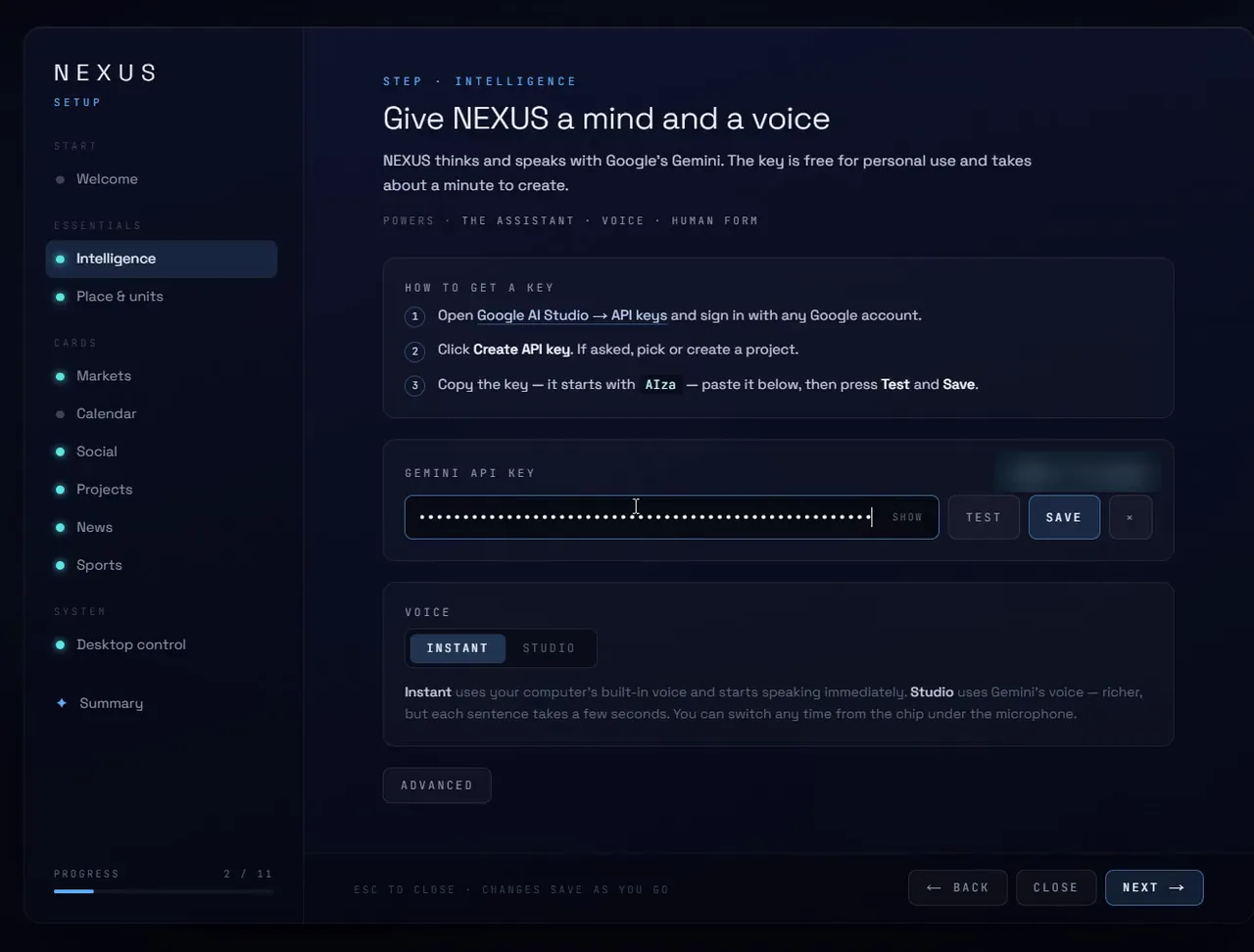
The first time NEXUS opens, a guided setup screen walks you through it, one section per key and card. Paste a free Gemini key and press Test (or pick a local model under Brain), type your city, choose what the Markets, News and Sports cards show, add your GitHub, and switch on desktop control if you want it. That is the whole setup.
NEXUS · SetupFirst launch
Nothing to edit by hand: NEXUS writes its own settings file
Each key is tested on the spot and stays on your computer
Every step can be skipped, and the screen reopens any time with SETUP or the , key
The NEXUS setup screen, start to finish: a Gemini key under Intelligence, the city and units, the Markets card's crypto view, Instagram, GitHub projects, news sources, sports leagues and desktop control, then NEXUS opening with everything connected.
Part 1
Run it on your machine
About 10 minutes
The whole spatial environment — worlds, gestures and the live modules that need no keys. Nothing to sign up for.
Install Node.js
Download the LTS version from nodejs.org and run the installer. NEXUS needs Node.js 18 or newer.
Check it worked — this should print a version number:
node --version
Unzip the pack and open a terminal in the folder
On a Mac, right-click the folder in Finder and choose New Terminal at Folder. On Windows, open the folder, click the address bar, type cmd and press Enter.
Install the dependencies
One time only. It also copies the MediaPipe hand-tracking files into the project for you.
npm install
Start it
There is no settings file to create: NEXUS writes its own the first time you use the setup screen.
npm run dev
Open it in Chrome or Edge
Go to http://localhost:3000. The first launch opens a setup screen with one section for each key and card. Every step can be skipped, so press through it to try NEXUS now, and come back any time with the SETUP chip at the top right or the , key.
Allow the camera to use hand tracking, or choose to continue without a camera and use the mouse and keyboard. Leave the terminal open while you use it; Ctrl+C stops it.
Find your way around
Press 1–6 to switch worlds, A and D to rotate the ring, W to expand a module and S to collapse it, Space to freeze everything. With a camera: swipe to rotate, pinch to grab, pull your hand towards the screen to expand.
Part 2
Turn on the assistant
About 5 minutes
One key, or a model on your own machine, makes NEXUS listen, think and talk back.
Get a Gemini key
Create one at aistudio.google.com/apikey. The free tier is enough to start.
Or think on your own machine
Install Ollama from ollama.com and pull a model that is good at tool calling (a 9B model is about 6.6 GB; qwen3.5:4b suits a smaller GPU). Then Setup → Brain: Local first keeps everything local except live questions, Local only never uses the cloud. Press Test to check it answers.
ollama pull qwen3.5:9b
Add it on the setup screen
Open the setup screen (the SETUP chip, or the , key), paste the key under Intelligence and press Test. It works straight away, no restart. The key is saved to .env.local on your computer, read only by the server, and never sent back to the browser — the screen shows only its last four characters.
Prefer the file? Add this line to .env.local and restart npm run dev:
GEMINI_API_KEY=your-key-here
Wake it and talk
Say "Nexus", draw a circle in the air, press N or click the microphone, and allow microphone access. Try "Open Stocks", "How is Nvidia today?" or "Take me to the observatory". Talk over it to interrupt, or press / to type instead.
Then make it yours: "Remember that I take my coffee black", "Remind me in 10 minutes to stretch", "Brief me".
Switch to Assistant mode
Press M, click the ASSISTANT chip or say "assistant mode"; IMMERSIVE ↗ takes you back. Setup → Performance picks the one NEXUS starts in. To leave it running every day, use the production server instead of npm run dev: it builds once and idles at about 110 MB.
npm run nexus
Optional: pin a model
By default NEXUS falls back across Gemini models so it keeps working through the free tier's per-model daily limit. Set GEMINI_MODEL in .env.local to use one model only.
Part 3
Connect your own data
About 15 minutes
Seven of the nine live modules already work. These steps make them yours and unlock the last two, all from the setup screen. Full detail is in docs/INTEGRATIONS.md.
Point the feeds at your world
On the setup screen: your city and units; a portfolio, watchlist, crypto or indices view, with presets for the US, India, Europe and Asia; your GitHub user and pinned repos; news sources and any RSS feed; sports leagues. They are saved in .nexus/settings.json. For anything deeper, such as refresh intervals, edit src/config/sources.ts.
Calendar
Copy your calendar's private iCal link — in Google Calendar, Settings → your calendar → "Secret address in iCal format"; the setup screen has guides for Apple and Outlook too — paste it under Calendar and press Test. By hand, it is this line in .env.local:
Switch the account to Business or Creator, link it to a Facebook Page, create a Meta developer app with the Instagram Graph API, and generate a long-lived token. Paste it under Social on the setup screen, which walks through each step (by hand: INSTAGRAM_ACCESS_TOKEN and INSTAGRAM_USER_ID). A personal account cannot work, whatever token you use.
Optional: a GitHub token
GITHUB_TOKEN raises the GitHub rate limit from 60 to 5,000 requests an hour. No private scopes are needed.
Part 4
Let it control your computer
About 10 minutes
macOS or Windows. Off by default, because a local API that launches apps deserves a deliberate yes. Full detail is in docs/DESKTOP.md.
Switch it on
Setup screen → Desktop control → Allow NEXUS to open apps and control this computer. It takes effect immediately, and the system log shows BRIDGE ONLINE with the number of applications it found. By hand, it is this line in .env.local, then a restart:
NEXUS_DESKTOP_BRIDGE=1
On a Mac, grant the permissions it asks for
System Settings → Privacy & Security: Screen Recording for your terminal app (screenshots); Automation for your terminal and each target app (Notes, Reminders, media); Accessibility for your terminal (hiding windows, locking the screen). Restart the dev server after granting.
On Windows, there is nothing to grant
Apps come from your Start menu, so "Open Word" or "Open File Explorer" works as you would say it. Notes are saved as text files in Documents\NEXUS Notes and open in Notepad. Windows has no scriptable Do Not Disturb, and NEXUS tells you so when you ask.
Try it
"Open Spotify", "Volume 40", "Take a screenshot", "Remind me to call the bank at 4".
Messages and music
"Message Asha on WhatsApp that I'm running late" opens a card with the masked number and the exact text; it is sent only when you press Send or say yes on your next turn. Save people with "Asha's number is …" or under Setup → Briefing & memory.
For exact songs, add free Spotify developer keys under Setup → Music (about two minutes). With Spotify Premium, Connect Spotify account there to start playlists, albums and artists as well.
Keep it on your machine
NEXUS listens only on this computer (127.0.0.1), the bridge only answers requests from this site, and it has no shutdown, restart or delete commands. Don't expose the dev server to your network or the internet, and switch desktop control off whenever you don't need it.
Shortcut
Or let a coding agent do Part 1
Open the unzipped folder in Claude Code, Cursor, Antigravity or Windsurf and paste this. You still need Node.js installed, and the agent will not add keys or change code unless you ask.
Read README.md. Install the dependencies, start NEXUS and give me the URL. Don't add API keys, turn on desktop control or change any code unless I ask.
If something goes wrong
The camera doesn't start+
Browsers only allow the camera on a secure address — http://localhost:3000 counts. Check the camera permission in the browser's site settings, or continue without a camera and use the mouse and keyboard.
It doesn't hear me+
Use Chrome or Edge and allow the microphone; Firefox has no built-in speech recognition. You can always press / and type the same command.
The assistant stays offline, or says it has no brain yet+
No brain is set. Open the setup screen (the SETUP chip, or the , key), add a Gemini key under Intelligence, or choose a local model under Brain, and press Test — it tells you in a sentence what is wrong. If you edited .env.local by hand, restart npm run dev.
The first answer from a local model is slow+
Ollama loads the model on its first request: 10–40 seconds for a 9B model on an RTX 3060. NEXUS starts that load as soon as it starts listening and keeps the model loaded for 30 minutes, so it is only slow after a long pause. A smaller model loads faster.
It stopped hearing me with two NEXUS tabs open+
Chrome runs one speech recognizer per browser, so only one NEXUS tab listens: the one you used last. Click into the other tab to move the microphone there, or close the spare one.
Answers stop partway through the day+
That's the Gemini free tier's daily limit — web-grounded answers hit it first. Wait for the reset, or use a paid key.
A module says SETUP REQUIRED+
It needs its own credential — Calendar and Instagram are the only two. Part 3 has the steps. This is deliberate: the module will not show made-up numbers.
"Open Spotify" does nothing+
Desktop control is off (Setup → Desktop control), you are on Linux, or on a Mac your terminal needs Automation permission for that app.
Screenshots fail with "could not create image from display"+
Grant Screen Recording to your terminal app in System Settings → Privacy & Security, then restart the dev server.
npm install fails with EACCES or a permissions error+
Your npm cache has files owned by another user. On a Mac or Linux run sudo chown -R $(id -u):$(id -g) ~/.npm, then npm install again.
Still stuck, or something in the pack is broken? Email support@brandmotion.in with what you ran and what it printed. Want it set up or customised for you? Talk to the studio.